Appearance
Code field
The Code field is an advanced form component for a reviewed custom implementation. It can render custom content and behavior inside a form. It is intended for experienced developers working with an approved specification—not as a replacement for normal fields, conditions, integrations, or settings.
What the Code field contains
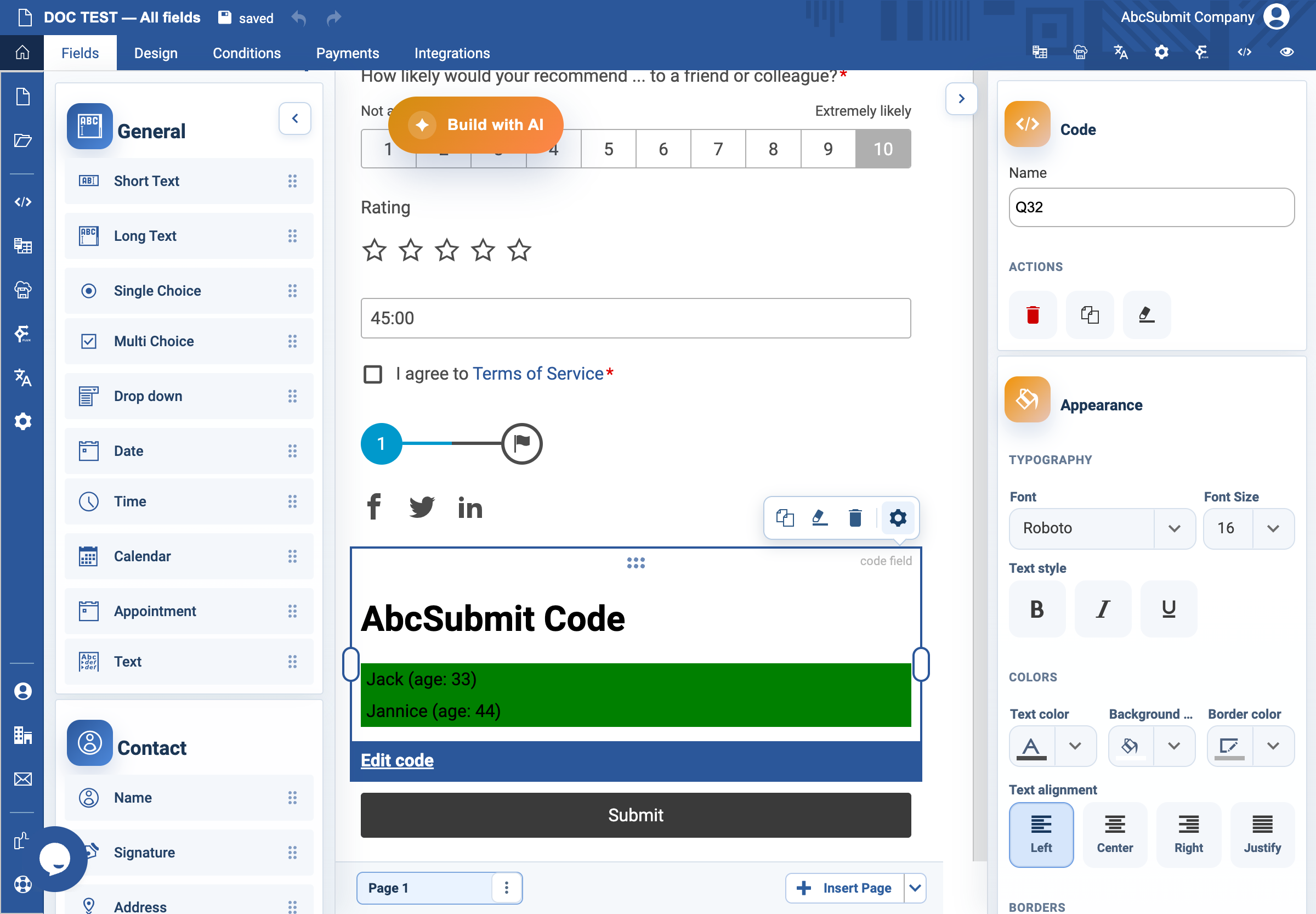
The field has one field-specific configuration: its code source. Select the field and choose Edit code to open the code editor.
The field can render its configured code in the form and supports custom data-source declarations. In a live form, it is connected to the form’s commands and submission model, so its behavior can affect the respondent experience and submission data.
Before adding Code
Use the Code field only after confirming that no standard AbcSubmit field, rule, workflow block, integration, or layout option meets the need.
Before implementation, have all of the following:
- A written purpose and acceptance criteria.
- A technical owner responsible for the code.
- A non-production form or approved draft for development and testing.
- A plan for version control, code review, rollback, and ownership.
- Confirmation that the implementation does not expose secrets, tokens, customer data, or internal endpoints in browser-visible code.
Add and edit a Code field
- Open the form you are configuring and select Fields.
- Under Other, add Code.
- Select the field, then choose Edit code.
- Replace the starter content only with reviewed code.
- Save the form and use Preview to test the rendered result.
- Test the full form flow, including validation, navigation, submission, error handling, and mobile behavior.
The editor can show a rendering error when the Code field fails to load or render. Treat that as a development issue to correct before the form is shared.
Code source and data sources
The editor’s starter example demonstrates that a Code field can declare a JSON data source. A data source must be intentional, available to the respondent’s browser, and appropriate for the audience.
Do not connect a Code field to a data source that exposes private, tenant-specific, or personal information. Check authentication, authorization, caching, and error behavior separately; a form field should not become a bypass around an application’s normal access controls.
Field settings that still apply
The Code field also inherits normal editor capabilities such as layout and visibility. Keep its internal name meaningful, and document any conditions, workflows, submissions, or integrations that depend on it.
Do not use a hidden Code field as a security mechanism. Hidden client-side content remains inspectable by a technically capable user.
Testing checklist
- [ ] The form has a documented business reason for custom code.
- [ ] The source has been reviewed and is stored in source control outside the live form.
- [ ] No credentials, API keys, tokens, private URLs, or personal data are embedded in the code.
- [ ] The field renders successfully in Preview.
- [ ] Errors are understandable and do not expose implementation details to respondents.
- [ ] Required form validation, navigation, conditions, and submission still work.
- [ ] The form works on the supported desktop and mobile browsers.
- [ ] External data sources fail safely and do not block the entire form unnecessarily.
- [ ] A technical owner can update or roll back the implementation.
Publishing guidance
Do not publish a Code field directly from a development test. Move reviewed, version-controlled code through your normal release process, then retest the exact production configuration. Any change to the code source should be treated as a functional change to the form.