
Appearance
Review submitted files
Use Files to locate and manage form-submitted file records when you have the required permission.
Toolbar, filtering, and selection
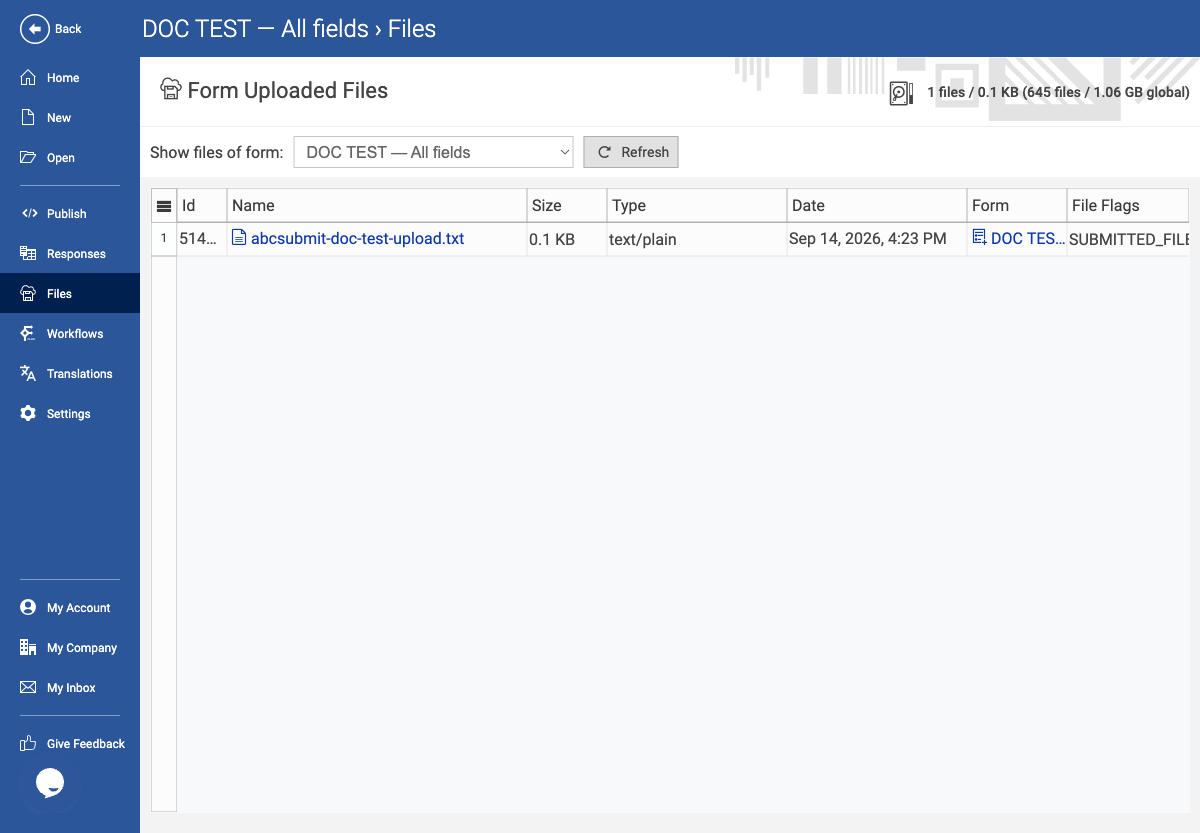
Use Show files of form to choose the current form, another permitted form, or <ALL FORMS>. Changing the selector refreshes the grid and quota. Refresh reloads the list. Select one or more rows to reveal Download; select exactly one row to reveal Open. Delete requires write permission and is destructive.
The grid displays ID, Name, Size, Type (MIME), Date, Form, and File Flags. Click a column header to sort; Size sorts by the underlying byte count. A file row’s Name and Form values identify the stored resource and owning form; do not share storage URLs publicly.
Example: review a sample upload
- Open the form containing the sample upload and select Files.
- Confirm you have permission to read files. If not, contact the form owner or administrator.
- Select the form from the form selector when you need to narrow the file grid to one form.
- Locate the file using its filename, date, type, or form association.
- Review the listed metadata: name, size, type, date, form, and file flags.
- Open or download a non-sensitive sample file when needed to check upload behaviour.
- Delete files only when you are sure they are no longer needed and you have permission to remove them.
Expected result
The uploaded test file is visible under the correct form with understandable metadata, and access does not expose files from an unrelated form or user.
When no files exist, the page shows 0 and Waiting for form files. Selection-dependent actions remain hidden. The quota indicator reports the form’s usage and, when applicable, the global account usage; an empty quota is displayed as Empty.