
Appearance
reCAPTCHA
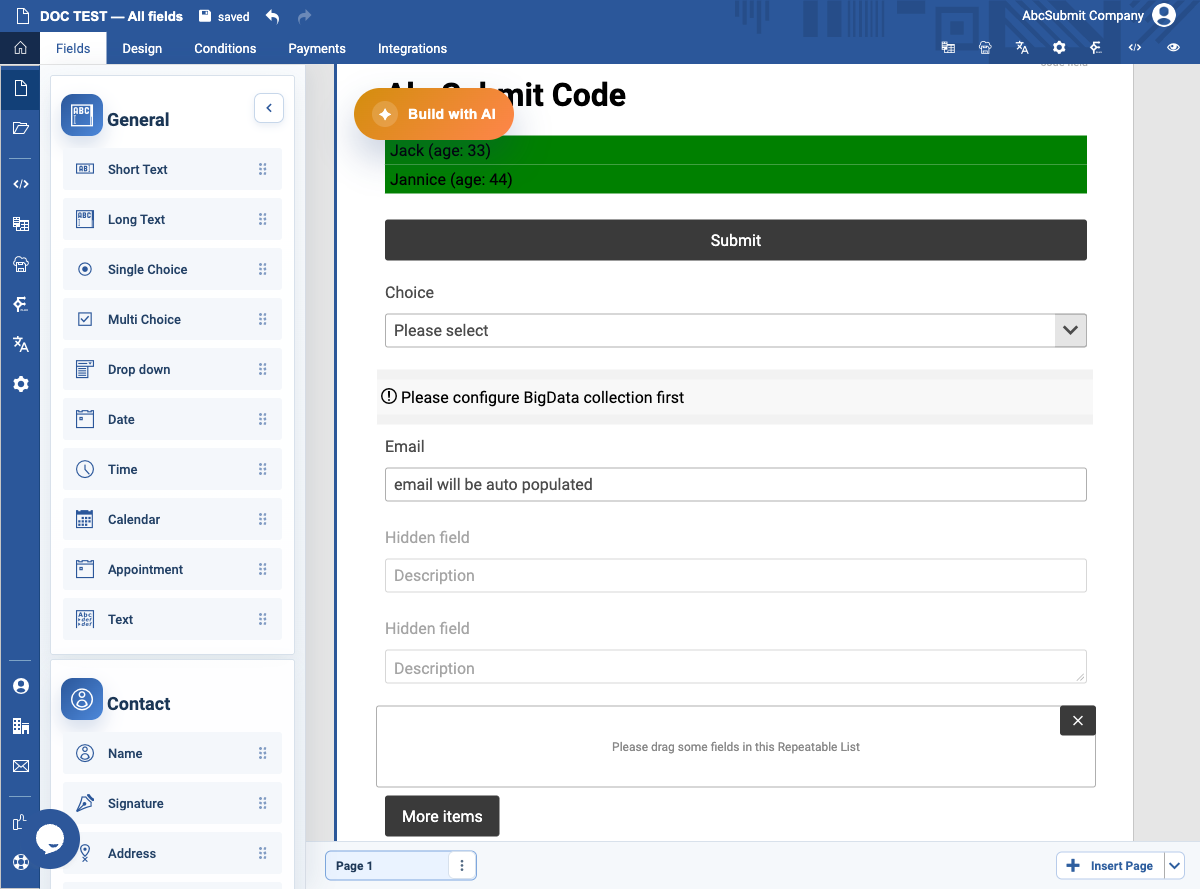
reCAPTCHA is an anti-abuse challenge shown on the form when CAPTCHA protection is enabled. It is not added from the Fields palette and does not collect an answer like a normal form field.
When to use it
Enable CAPTCHA when a public form is likely to receive automated or abusive submissions. Balance this protection against accessibility and respondent-friction requirements; provide an alternate support path if legitimate users cannot complete the challenge.
Configure and verify
- Open Settings > Security & Access.
- Enable or review the CAPTCHA option.
- Preview the form and confirm the challenge appears before submission.
- Test a normal respondent flow and verify that a failed challenge prevents submission with a clear message.
- Review the setting again before publishing or changing the form’s domain.
Important notes
- CAPTCHA protection applies to the form as a whole, not to one question.
- It may depend on provider availability, browser privacy settings, and the account’s security configuration.
- Do not treat CAPTCHA as authorization, authentication, or a replacement for rate limits and submission review.
Expected result
The challenge is visible to respondents when enabled, and a submission cannot proceed until the challenge is completed successfully.