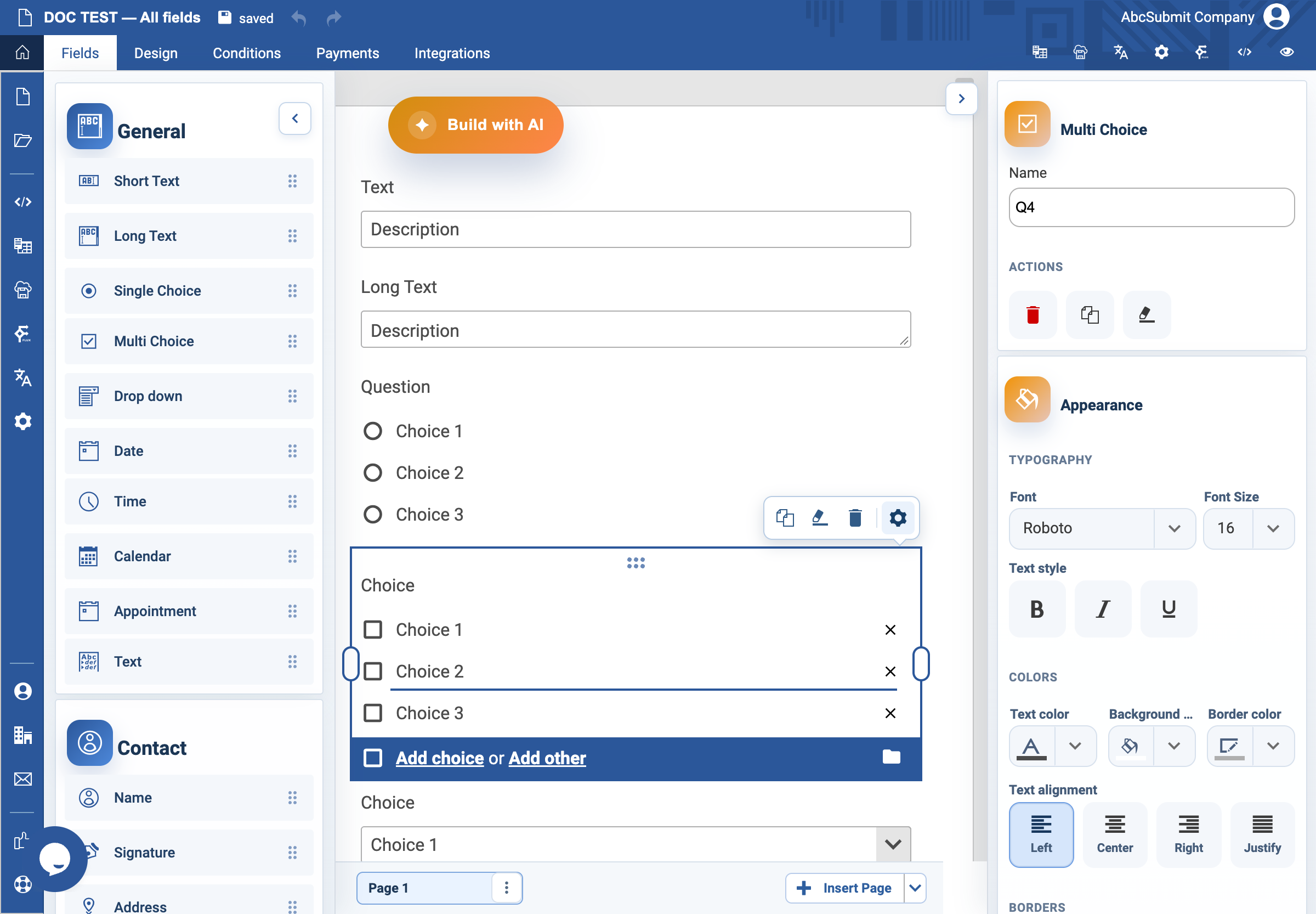
Appearance
Multi Choice field
Use Multi Choice when the respondent may select several answers.
Example: sessions to attend
- Open Fields > General and select Multi Choice.
- Select the field and open Edit.
- Set the label to
Which sessions will you attend?. - Set Name to
selected_sessions. - Add the session choices, one answer per choice.
- Use Add Other only if you need respondents to propose another session.
- Set Single Column for long session names, or two columns only when labels remain easy to scan.
- Turn on Required Field only if the respondent must choose at least one session.
- Preview and select one choice, several choices, and no choices.
Settings
Multi Choice uses the same choice editing, Other-answer, column layout, Text/Button display, validation, and appearance settings as Single Choice. Its behavior differs in one important way: multiple fixed choices can be selected together.
The choices editor also has the folder/open Import icon. Use it to preview and save one of the v2 standard datasets (including Continents of the world). Save replaces the existing list; Cancel leaves it intact. The import disables Other and may choose a column layout automatically.
Do not use Unique Value for ordinary multiple-choice questions. It can prevent later respondents from selecting a choice that should be reusable.
Expected result
The respondent can select any combination of configured choices. If required, they must select at least one; if optional, they may select none.