
Appearance
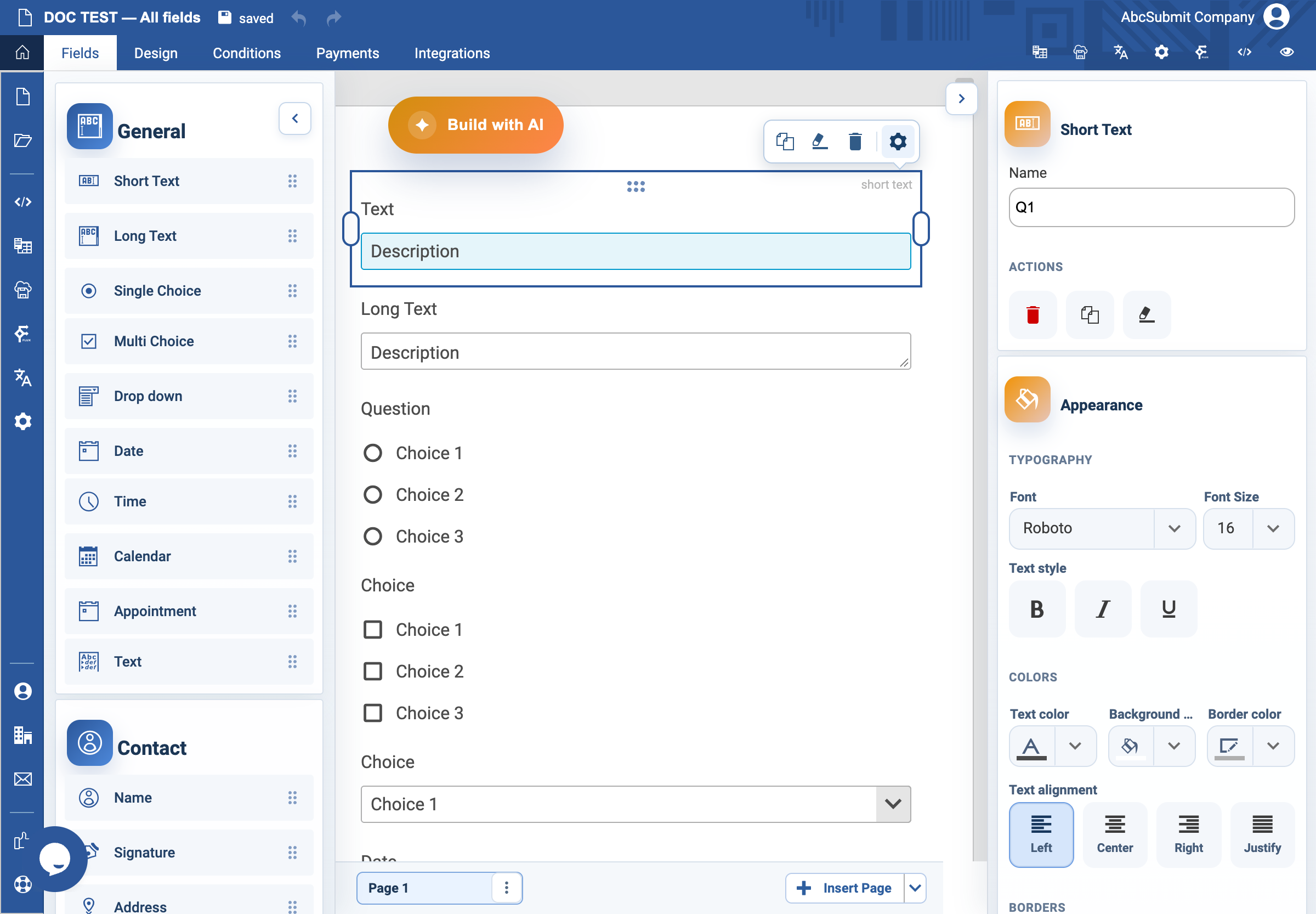
Short Text field
Use Short Text for one short typed answer, such as an employee ID, city, or job title.
Email validation: use the Email field
If the answer must be an email address, add the dedicated Email field instead of a Short Text field. Select Fields > Contact > Email; the Email field applies the product’s email validation. Set Required Field when the address is mandatory and provide a helpful Custom error text.
Custom regex pattern (v2)
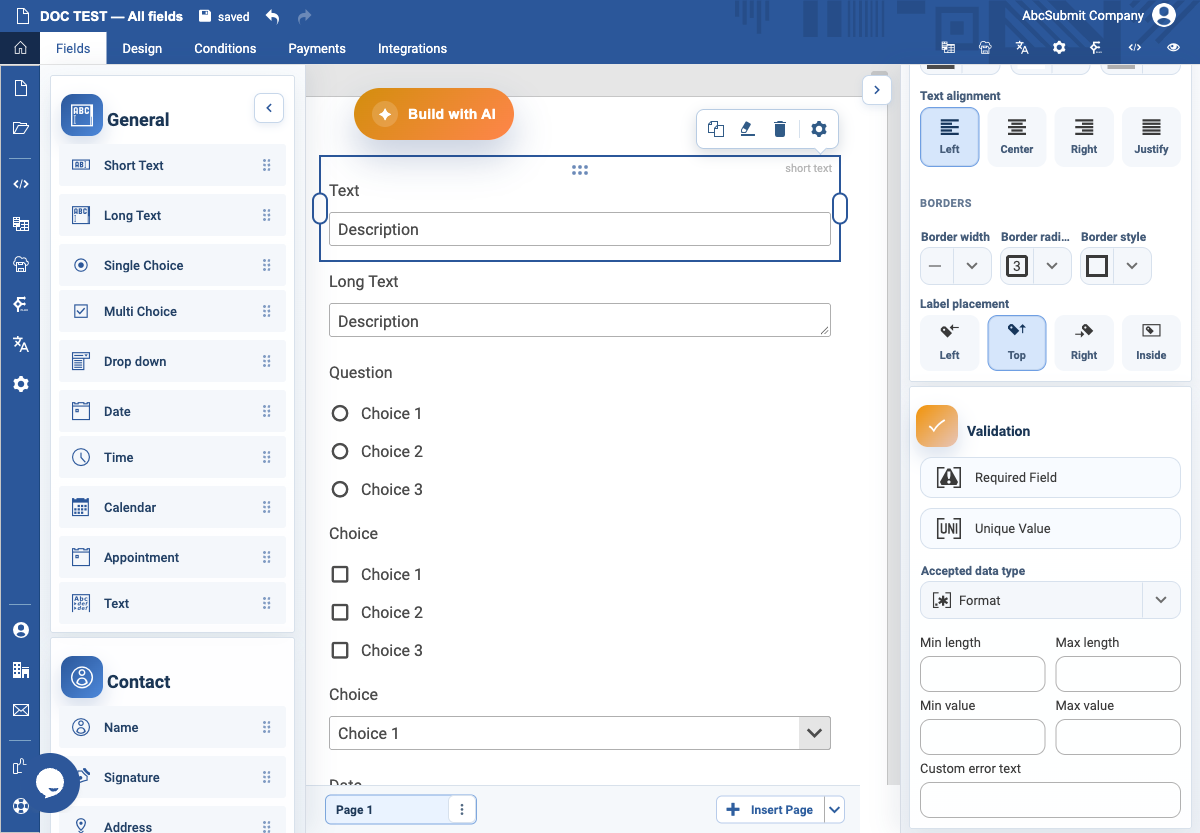
Short Text supports a custom pattern through Accepted data type. Select Pattern, then enter the regular expression in the regular expression input that appears in the dropdown. Confirm the value with Enter or by leaving the input, then preview and test both matching and non-matching values.
For example, the exact pattern for values like ABC-123-done is:
regex
^ABC-[0-9]{3}-done$This means: the literal prefix ABC-, exactly three digits, the literal suffix -done, and nothing before or after. Do not paste the expression into the label, placeholder, or custom error text; it belongs in the Pattern validator’s regular expression input.
Example tests:
- Accepted:
ABC-123-done - Rejected:
ABC-12-done,abc-123-done,ABC-123-DONE, orABC-123-done
Pattern validation is client-side form validation. If the value protects an external operation or security decision, validate it again in the receiving server or integration.
Example: required employee ID
- Open your form and select Fields.
- In General, select Short Text. It is added to the active page; drag it when you need a different position.
- Select the new field, then select Edit.
- Change its visible label to
Employee ID. - Set Name to
employee_id. This is the internal reference used by responses, rules, emails, and workflows. - Select the placeholder text in the field and enter
For example, EMP-1042. - In Validation, turn on Required Field.
- If the ID has a fixed length, set Min length and Max length; otherwise leave them blank.
- Set Custom error text to
Enter your employee ID. - Select Preview. Try submitting an empty value, then submit
EMP-1042.
Every applicable setting
| Setting | What to enter or choose |
|---|---|
| Label | The question respondents see: Employee ID. |
| Name | A stable internal identifier: employee_id. |
| Placeholder | A short example, not the only instruction. |
| Required Field | Turn on when the answer is essential. |
| Unique Value | Turn on only for an ID that must appear in one submission only. |
| Accepted data type | Use only when a specific answer format is required. |
| Min / Max length | Use for fixed-length identifiers. |
| Min / Max value | Use only for numeric values. |
| Custom error text | Tell the respondent how to correct the answer. |
| Appearance | Adjust field typography, colors, borders, and label placement only when the form design requires it. |
Expected result
The form shows one required Employee ID input. An empty submission is blocked; EMP-1042 is accepted.