
Appearance
Export a fillable PDF
Use Publish > PDF (Beta) when recipients need a downloadable PDF version of a form. Treat the PDF as a separate output: test it with representative, non-sensitive data before sending it to users.
PDF export controls
The PDF (Beta) panel provides a GENERATE PDF button and a READ MORE section describing export limitations.
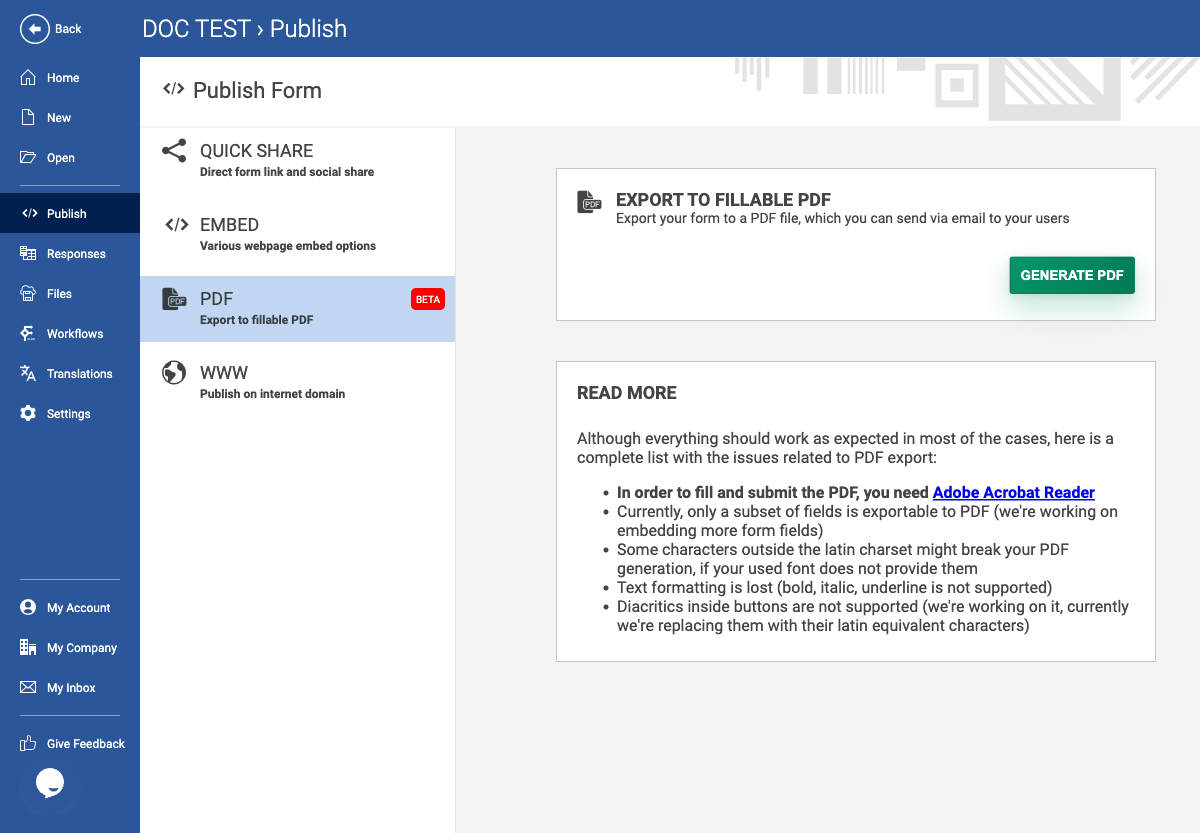
Steps
- Complete and preview the form in the editor.
- Open Publish, then choose PDF (Beta).
- Read the limitations and confirm that the fields and languages your form needs are supported.
- Select GENERATE PDF only when the form is approved for export.
- Download or open the generated file, fill it with test data, and verify that labels, controls, required fields, and diacritics render correctly.
- Distribute the PDF only through an approved channel. Keep the editor form and PDF version synchronized when either changes.
Export limitations shown by the product
- Only a subset of field types can be exported.
- Non-Latin characters may break depending on the selected font.
- Text formatting such as bold, italic, and underline is not supported.
- Diacritics in button labels are unsupported and may be replaced with Latin equivalents.
If any limitation affects the form, use the hosted or embedded HTML form instead, or redesign the affected fields before exporting.