Appearance
Drop down field
Use Drop down when the respondent must select one value from a compact list.
Example: department
- Open Fields > General and select Drop down.
- Select the field and open Edit.
- Set the label to
Select your department. - Set Name to
department. - Make the first choice
Select a department. - Add each real department as a separate choice underneath it.
- Enable the setting that treats the first choice as a placeholder.
- Turn on Required Field.
- Set Custom error text to
Select a department. - Preview. Confirm that the first prompt is not accepted as a real submitted answer and each department can be selected.
Settings
| Control | What it changes |
|---|---|
| Choices | The list shown in the drop down. |
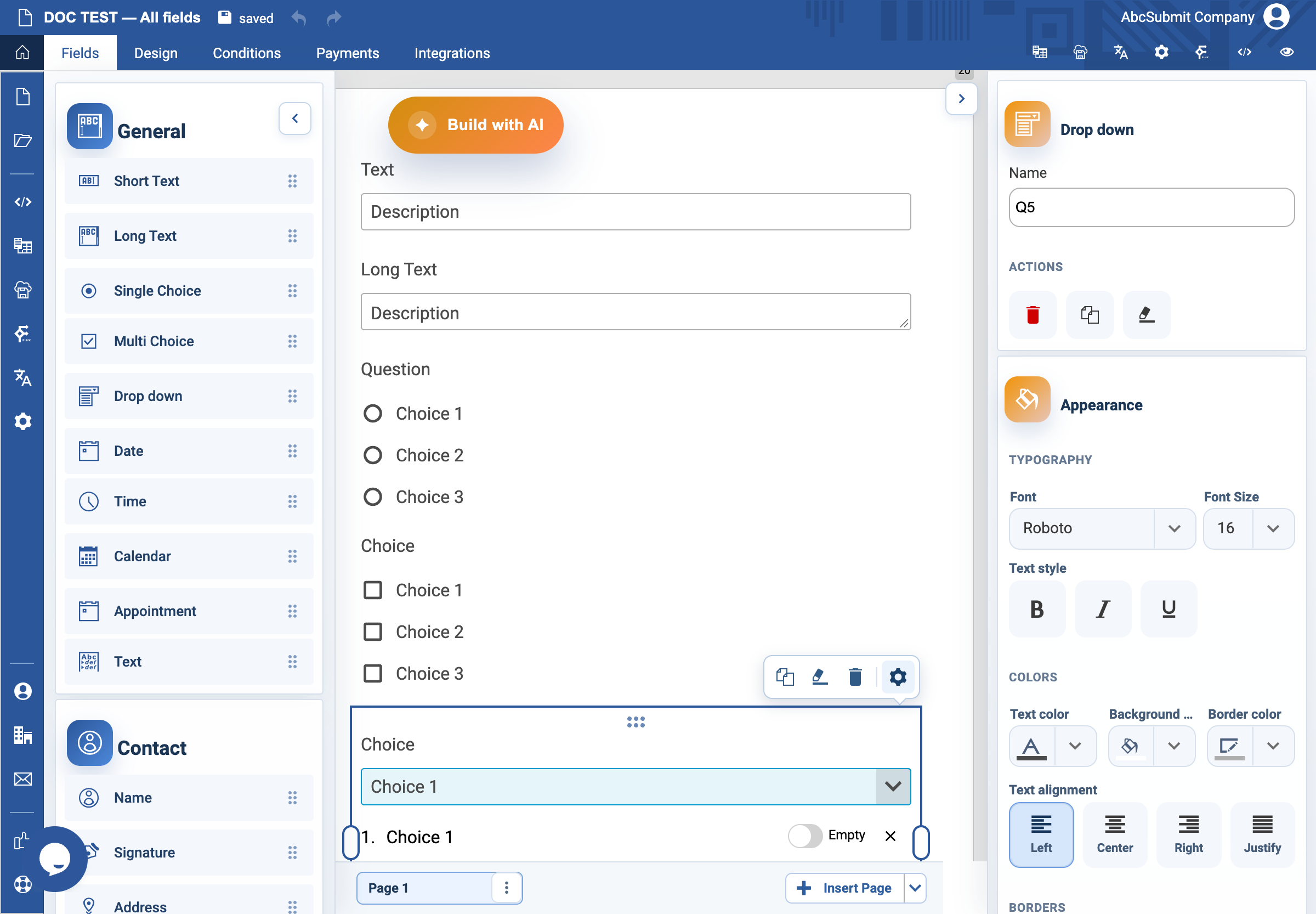
| Empty (tooltip: First choice has no value) | Makes the first item an empty instruction rather than a submitted value. The switch is shown only beside choice 1. |
| Required Field | Requires a real selection. |
| Label / Name | The visible question and internal reference. |
| Unique Value | Restricts reuse of a selected value; use only for a real one-per-submission constraint. |
| Custom error text | Explains what the respondent needs to select. |
Import a preset choice list
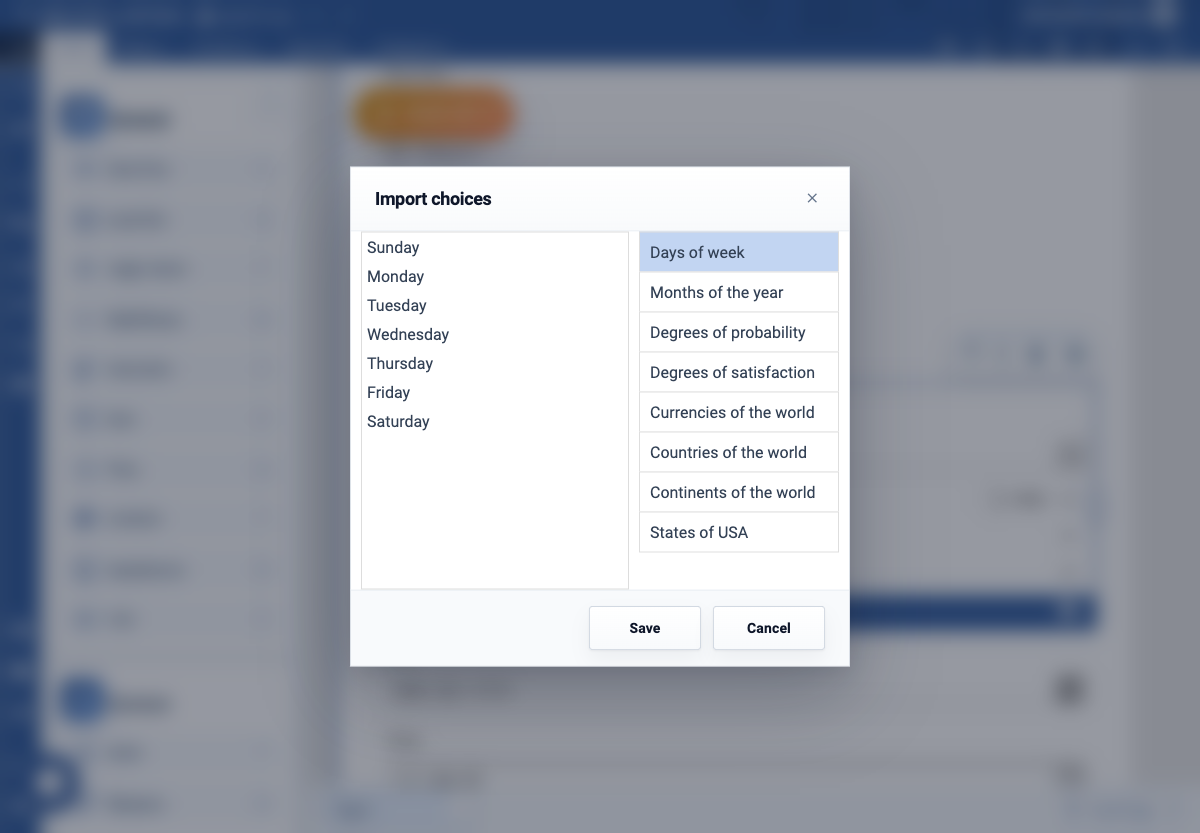
The selected Drop down field has a small folder/open icon at the end of its choices editor. Its tooltip is Import. Select it to open Import choices, then choose a preset to preview its values. The v2 dialog includes Days of week, Months of the year, Degrees of probability, Degrees of satisfaction, Currencies of the world, Countries of the world, Continents of the world, and States of USA.
To add the world continents:
- Select the Drop down field and open Edit.
- In the choices list, select the folder/open Import icon.
- Select Continents of the world. The preview shows
Asia,Africa,North America,South America,Antarctica,Europe, andAustralia. - Select Save in the dialog. The preset replaces the current choices; use Cancel if you only wanted to inspect it.
- Review the imported choices, set the first-choice placeholder only if appropriate, and preview the form.
The same Import choices toolbar is available for Single Choice and Multi Choice. Importing also clears an enabled “Other” choice and may adjust the choice layout to fit the field width.
Expected result
The first visible item is Select a department, but it is not a valid answer. A respondent must choose a real department before submitting.
First choice is empty
The Empty switch is a small toggle beside the first choice—not a setting in the main drawer. Turn it on when the first label is an instruction such as Select a department; v2 stores that option with no value, so Required Field rejects it. Turn it off when the first choice is a real answer that should be submitted. Test both states in Preview, especially after importing a preset.