
Appearance
Host a form on a domain
Use a hosted publishing route when the form should be reachable directly rather than embedded in another page.
Live controls
On the live Publish > WWW panel, you can choose either an AbcSubmit subdomain (yourdomain.abcsubmit.com) or your own www domain. Each option has PUBLISH and UNPUBLISH actions. The custom-domain option also has HTTPS SETTINGS. Enter a domain only after its owner has approved the publication and completed any required DNS setup.
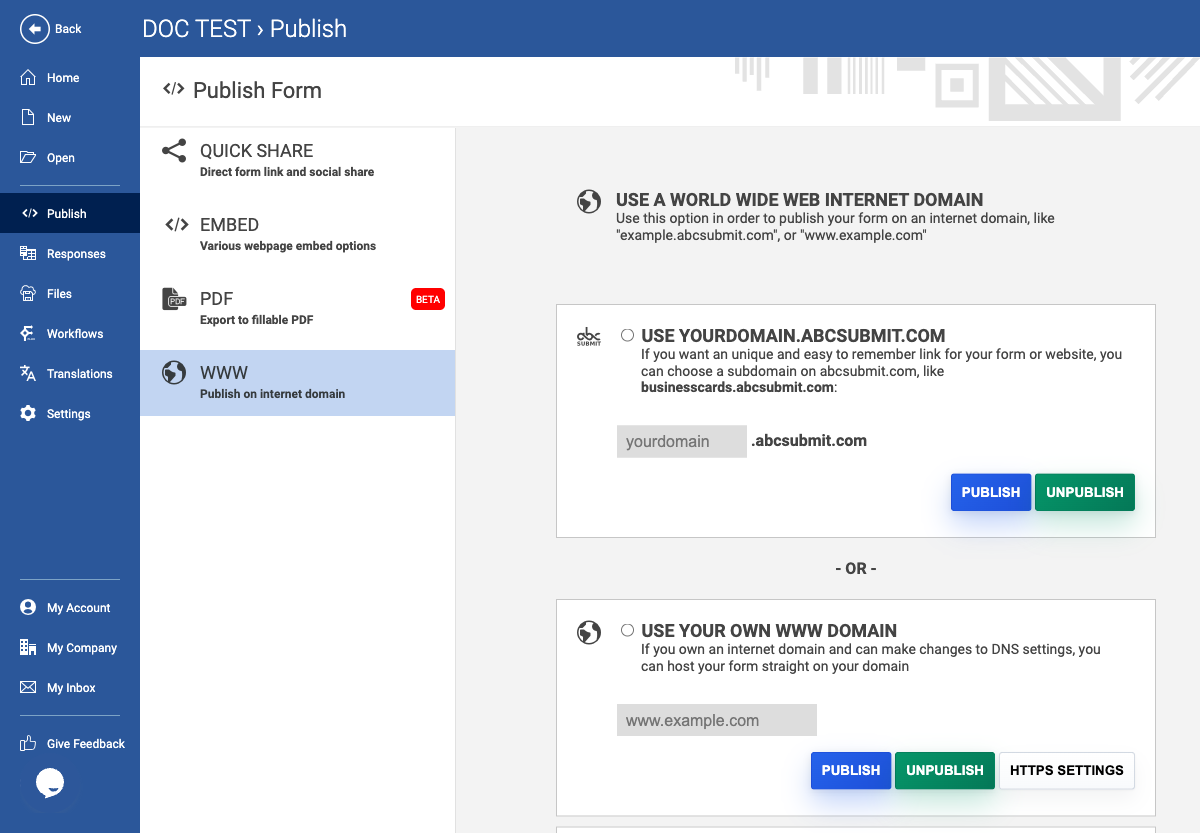
Custom-domain DNS setup (required)
Before selecting PUBLISH for Your own domain, create an A record at the DNS provider for the exact hostname you will enter. Point that A record to the AbcSubmit publishing load-balancer IP supplied by your installation/administrator. The server performs a DNS A-record lookup and accepts the domain only when the resolved address is one of the configured publishing load balancers. A CNAME alone, an AAAA-only record, or an A record pointing to a web host/CDN that is not an AbcSubmit load balancer will fail verification.
Example DNS entry (use the IP supplied for your environment, not this placeholder):
| DNS name | Type | Value | TTL |
|---|---|---|---|
forms.example.com | A | <AbcSubmit publishing IP> | Provider default or 300 seconds while testing |
For an apex domain, use the DNS provider’s apex notation (@) and confirm that the provider permits an A record there. If you enter www.example.com, create the A record for www; if you enter example.com, create it for the apex. Do not enter http:// or https:// in the Publish field. The backend accepts a leading www. but normalizes it, and requires a dotted hostname without a trailing dot.
The publishing IP is deployment configuration (publish.loadBalancers / PUBLISH_LOAD_BALANCERS), not a universal value embedded in the editor. In the repository’s current environment configuration, the primary publishing address is 147.182.172.153; the local Kubernetes manifests use 68.183.108.214. Use the address for the environment where the form is being published, and confirm it with the administrator before changing DNS. If DNS verification fails, the server error reports the exact publishing IP expected by that installation. Do not guess or use the IP of www.abcsubmit.com.
After changing DNS, verify propagation with your DNS provider or a DNS lookup from the same network used by the publisher. Remove conflicting A records, stale parking records, and proxy/CDN masking while enrolling the domain. Multiple A records are accepted only if the first address returned is an approved load balancer; use one approved address during setup to avoid resolver-order failures.
HTTPS and certificate
After the domain resolves to the approved A-record address, use HTTPS SETTINGS for the custom-domain row to submit the domain’s SSL certificate details through the provided certificate form. Certificate coverage must match the hostname (including whether the form is served at the apex or www), include the required certificate chain, and have a private key that corresponds to the certificate. Do not paste a certificate or key into the domain text field. Confirm HTTPS in a private browser window after enrollment; DNS verification and TLS certificate installation are separate steps.
Example: publish to an approved domain
- Get approval for the intended public URL and confirm the form is ready for external use.
- Open Publish and choose the hosted/direct method.
- Select an AbcSubmit-hosted subdomain or the custom-domain option.
- For a custom domain, create the required A record first, wait for propagation, and verify it resolves to the supplied AbcSubmit publishing IP.
- Enter the hostname only (for example,
forms.example.com) and select PUBLISH. - If HTTPS is not already installed, open HTTPS SETTINGS and complete the certificate flow.
- Open the URL over HTTPS in a private/incognito browser session.
- Run a non-sensitive end-to-end submission and confirm the expected confirmation page, redirect, notifications, and access restrictions.
Troubleshooting
| Symptom | Likely cause | Fix |
|---|---|---|
| “Please add an A DNS record … pointing to IP …” | No A record is visible yet. | Add the A record for the exact entered hostname, wait for propagation, and retry. |
| “Invalid DNS settings” | The A record points to another host, CDN, parking service, or unapproved IP. | Point it directly to the installation’s approved publishing IP while enrolling. |
| Domain field rejected | URL scheme, trailing dot, missing dot, or malformed hostname. | Enter a hostname only; omit http(s):// and the final dot. |
| Publishes but HTTPS warns | Certificate is absent, expired, mismatched, incomplete, or not yet installed. | Use HTTPS SETTINGS, install a matching certificate/chain/key, then retest. |
| Works for one resolver but not another | DNS propagation/cache or multiple conflicting A records. | Check authoritative DNS, remove conflicts, lower TTL temporarily, and wait for caches to expire. |
Expected result
The form is reachable only at the approved domain and behaves like the tested preview. If a hosted form must be removed, use the Publish screen’s unpublish action and confirm the public URL no longer serves the form.